
Not everyone looking out for a child knows their way around games, and that’s where a few useful settings can help.
Technology is constantly evolving, and while that brings plenty of benefits, it also comes with its own dangers. With technology becoming more integrated into our lives, children now have easier access to games, online spaces and other digital content than ever before.
Whether you're a parent, legal guardian, or just a concerned uncle or aunt, keeping them safe can feel daunting, especially if you don't play games yourself or barely understand the device they're using. Who are they talking to? What are they spending money on? Is that game even appropriate for their age? And realistically, who has the time to keep watch every minute they're playing?
Thankfully, you don't have to be a gamer or a tech expert to simply put a few safeguards in place. PlayStation, Nintendo, Xbox, Steam, iOS, and Android all have parental controls that can help manage what children play, how long they play, what they can buy and, in some cases, who they can interact with.
If you don't know where to begin, that's what this guide is for. We'll go through some of the most useful parental controls available and, more importantly, how to actually set them up.
What should I look out for when buying or allowing my child to play a game?
The first thing to check is the game's age rating. Depending on the region, this may come from organisations such as the ESRB in North America, PEGI in Europe, CERO in Japan, USK in Germany, or the IARC internationally. These ratings give parents and guardians a quick indication of the age group a game is intended for and whether its content may be appropriate for their child.
The second consideration is how much interaction the game allows with other players. If a game includes text chat, voice chat or other ways to communicate with strangers, it may require more active monitoring and conversations about who the child is interacting with online. Parents and guardians should also talk to children about what to watch out for before they start playing, including how to respond if another player makes them uncomfortable or asks for personal information.
The third major consideration is in-game purchases, commonly known as microtransactions. Some games allow players to spend real money on in-game currency, costumes, weapons, stickers, and other items. It is generally safer not to give children unrestricted access to a digital wallet or credit card connected to a game or platform. Younger children in particular may not fully understand how quickly small purchases can add up, so purchases can instead be approved or made by an adult.
Parental controls can help with all of these, but they are still only guardrails. They work best alongside clear rules, regular conversations, and trust, so children understand not only what they can and cannot do, but also when they should come to an adult for help.
With that in mind, here's how to set them up.
How do I set up parental controls on PlayStation?
PlayStation Family lets parents and guardians manage a child’s account, including what they play and buy, as well as how much time they spend gaming. The PlayStation Family app also allows these settings to be managed from a mobile device.
Parents and guardians can use PlayStation Family to:
- See what a child is playing
- Keep track of purchases
- Monitor playtime
- Manage a child’s account from a mobile device
How to set up PlayStation Family
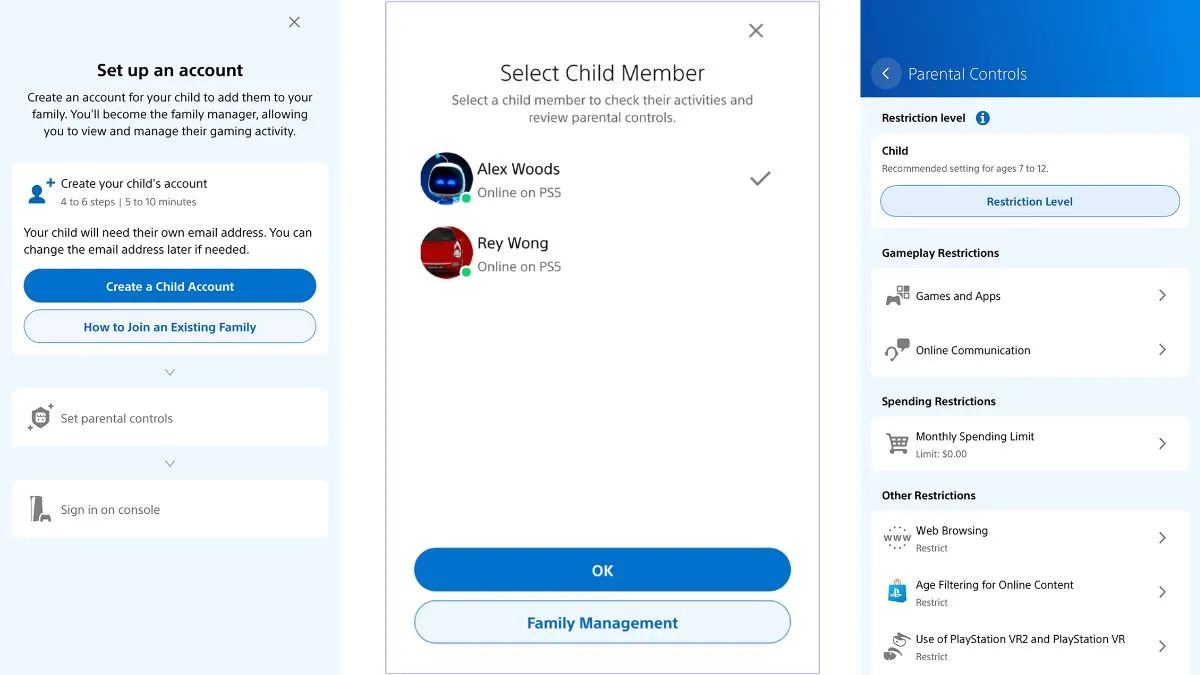
A parent or guardian first needs a PlayStation account. One adult can then become the family manager, which allows child and adult accounts to be added and managed.
To add a child using the PlayStation Family app:
- Open the PlayStation Family app and select Sign in or Create an Account.
- Select Set Up Your Family to create an account for your child and add them to PlayStation Family.
- To add another child later, open Settings > Family Management > Add a child.
The PlayStation Family app is available on the Google Play Store and Apple App Store. For instructions on the rest of PlayStation Family’s settings and features, see PlayStation’s full guide.
How do I set up parental controls on Nintendo Switch and Switch 2?
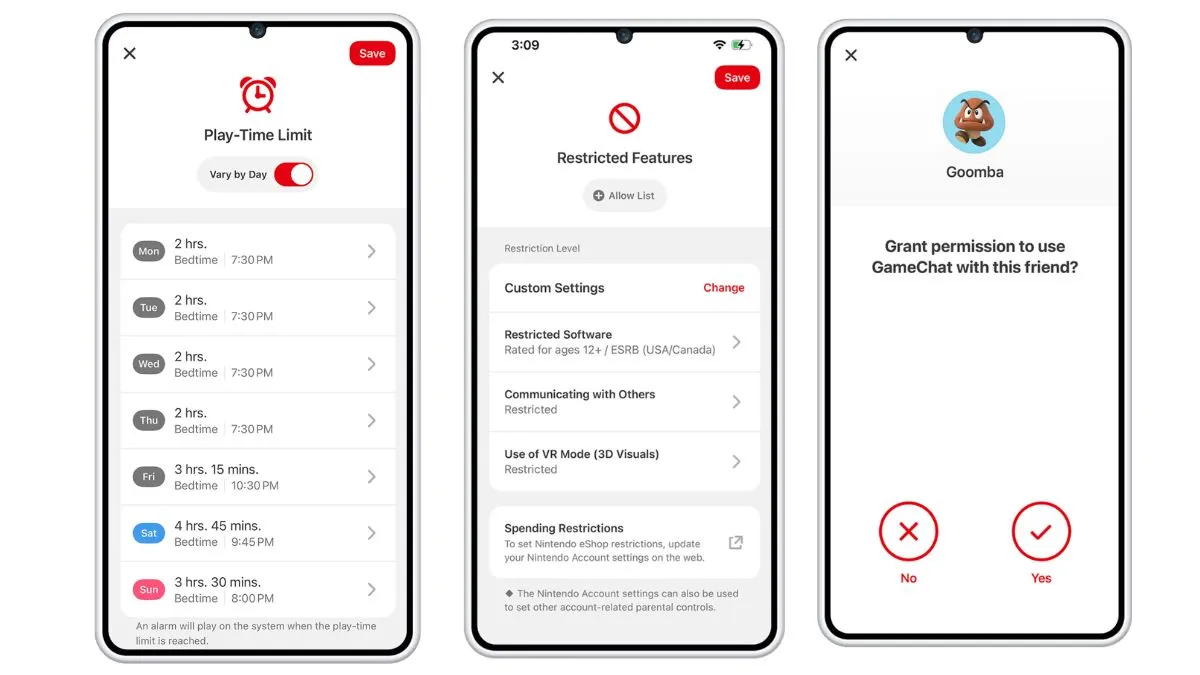
Nintendo’s parental controls work across Nintendo Switch and Nintendo Switch 2, with the Nintendo Switch Parental Controls app offering the most management options. The console your child uses needs to be linked to the app before you can manage it from your phone or tablet.
Parents and guardians can use Nintendo’s parental controls to:
- Restrict games based on their age or classification rating
- Allow specific games that would otherwise be restricted
- Limit a child’s ability to exchange messages and images with other players
- Apply communication restrictions to individual games
- Set playtime limits
- Check which games a child has played and for how long
- View monthly play activity
- Receive notifications when new games are downloaded
- Restrict posting screenshots to social networks on the original Nintendo Switch
- Restrict VR mode on the original Nintendo Switch
- Manage GameChat for children under 16 on Nintendo Switch 2
What you need to set up Nintendo parental controls
Before starting, you will need:
- The Nintendo Switch or Nintendo Switch Lite used by the child
- A smartphone or tablet for the parent or guardian
- The Nintendo Switch Parental Controls app
- A Nintendo Account belonging to the parent or guardian, who must be at least 18
- An internet connection for both the console and mobile device
How to link the Nintendo Switch Parental Controls app
- Turn on the console and open the HOME Menu.
- Select System Settings.
- Select Parental Controls > Parental Controls Settings.
- When prompted, download the Nintendo Switch Parental Controls app on your smartphone or tablet. You can also scan the QR code displayed on the console to reach the download page.
- Once the app has been installed, return to the console and select “I’ve installed the app. What’s next?”
- Open the Nintendo Switch Parental Controls app on your mobile device and sign in using the parent or guardian’s Nintendo Account. If you do not have one, you can create an account through the app.
- After signing in, the app will display a six-digit registration code. Leave this screen open.
- Return to the console, select Enter Registration Code and enter the six-digit code shown on the app. Select OK.
- The Nintendo Account being used to register the console will appear on-screen. Check that it is the correct parent or guardian account, then select Register.
- Return to the app and follow the instructions to set the Play Time Limit and Restriction Level.
If several children use the same console, Nintendo recommends setting the restrictions according to the youngest child. And, if parental controls have already been set up directly on the console, go to Change Settings, enter the existing PIN, then select Continue Setup on Smart Device > No.
Keep the parental controls PIN private
Nintendo automatically sets a PIN when registration is complete. If the console already had a parental controls PIN, the existing PIN will continue to be used. The PIN is sent to the email address connected to the parent or guardian’s Nintendo Account and can also be checked through the Parental Controls app. Make sure children do not have access to the PIN, as it can be used to override restrictions.
Choose which games your child can play
Parents can choose from preset age categories or customise restrictions based on their child’s age. Games outside the selected age range will then be restricted. If there is a particular game a parent still wants to allow, it can be added to a whitelist so it is excluded from the Restricted Software setting.
Manage chat and communication
Parents can restrict a child’s ability to exchange messages and images with other users. These restrictions can also be set separately for individual games.
Nintendo Switch 2 has additional protections for GameChat. A parent or guardian must be involved in the setup and use of GameChat for players under 16, with the account managed through the Nintendo Switch Parental Controls app. Players under 16 can only use GameChat with friends approved by their parent or guardian.
Video chat also requires approval every time. When a player under 16 starts a video chat, a request is sent to the parent or guardian’s app, and the call can only begin once it has been approved.
Parents can also view GameChat history, including who their child played with, how long they chatted, and the camera field-of-view setting used during video chats.
Check what your child is playing
The Nintendo Switch Parental Controls app shows how much time a child spends playing different games. Parents can check daily activity and receive a monthly summary of their child’s play activity. The app can also send a push notification when a new game is downloaded.
For additional settings and setup help, see Nintendo’s full parental controls guide.
How do I set up parental controls on Xbox?
The Xbox Family Settings app lets parents and guardians manage children in their Microsoft family group and adjust their Xbox safety settings from a mobile device.
Parents and guardians can use Xbox family settings to manage things such as:
- Content restrictions
- Social and multiplayer permissions
- Requests for additional playtime
- Other safety settings connected to a child’s Xbox account
What you need to set up Xbox parental controls
Before starting, the parent or guardian needs a Microsoft account that can act as an organiser in the family group. The child also needs a Microsoft account, although one can be created through the Xbox Family Settings app during setup.
Some Xbox Family Settings features may not be available in all regions.
How to add a child who already has a Microsoft account
- Open the Xbox Family Settings app and sign in with the organiser’s Microsoft account.
- Select Continue.
- From the Family screen, select the green Accounts icon in the top-right.
- Select Add child > Add existing account.
- Enter the email address connected to the child’s Microsoft account.
- Select Send invitation > Done.
- The child or account holder must open the invitation email, select Join now and follow the onscreen instructions to join the family group.
- Return to the Xbox Family Settings app and pull down on the Family screen to refresh the list.
- Select Finish setting up under the newly-added account.
- Follow the onscreen instructions to configure settings such as age, content restrictions and social and multiplayer privileges.
- Select All done.
The child’s account should then appear under Member on the Family screen.
How to add a child who does not have a Microsoft account
If the child does not already have a Microsoft account:
- Open the Xbox Family Settings app and sign in with the organiser’s Microsoft account.
- Select Continue.
- From the Family screen, select the green Accounts icon in the top-right.
- Select Add child > Create new account.
- Select Get a new email address and follow the onscreen instructions to create the child’s Microsoft account, including their name, birthdate and age.
- After the app creates a gamerpic and gamertag for the child’s Xbox profile, select Next.
- Follow the onscreen prompts to adjust the account and safety settings.
- Select All done.
- Return to the Family screen and check that the child appears under Member. If the account does not appear, pull down on the screen to refresh the list.
For additional help managing the family group, see Xbox’s Family Settings app troubleshooting guide.
How do I set up parental controls on Steam?
For PC gaming through Steam, parental controls are built into Steam Families.
Steam Families supports up to six accounts, with each one assigned either an adult or child role. Adult accounts can manage invites and apply restrictions, while child accounts are subject to parental controls and cannot manage the group themselves.
Steam’s parental controls allow adults to:
- Choose which games a child can access
- Restrict access to the Steam Store
- Restrict access to the Steam Community
- Restrict Friends Chat
- Set hourly or daily playtime limits
- View playtime reports
- Approve or deny requests for additional playtime
- Approve temporary or permanent access to restricted features
- Recover a child’s account if they lose their password
How to set up Steam Families
Set up Steam Families for the household, then invite the other Steam accounts you want to add. Up to five other accounts can be included, and the group can be managed through the Steam client, a mobile device or a web browser. Make sure children are assigned a child role so adult accounts can apply parental controls to them.
How purchases work for child accounts
Steam Families lets children request a purchase, instead of requiring access to a parent’s credit card or other payment method.
A child can add games to their shopping cart and request that an adult account pay for them. The adult can review the request and pay through a mobile device or email. Once the purchase is approved and paid for, the games are added directly to the child’s Steam account. Steam Families also includes Family Sharing, which allows eligible games owned by accounts in the household to be shared. This is separate from the parental controls themselves.
For more information, see the Steam Families support guide.
How do I set up parental controls on iPhone and iPad?
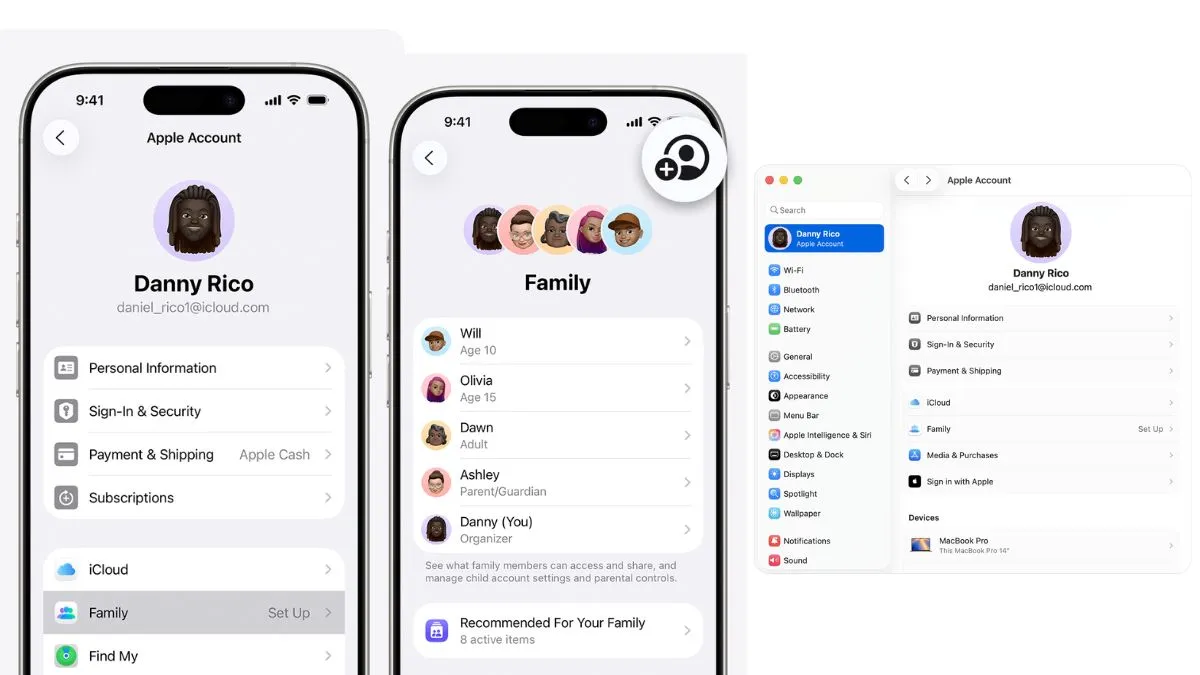
Apple includes parental controls through Screen Time on iPhone and iPad.
Parents and guardians can use these controls to:
- Prevent App Store and in-app purchases
- Restrict built-in apps and features
- Restrict apps, games and other content based on age ratings
- Limit inappropriate web content
- Manage Game Center multiplayer, friends and communication
- Restrict Siri features
- Prevent changes to privacy settings
- Prevent changes to other device settings and features
- Use additional Screen Time health and safety features
Apple also offers Communication Limits and Communication Safety through Screen Time.
Before turning on parental controls
Before parental controls can be managed for a child, Apple says Family Sharing needs to be set up and the child’s Apple Account added to the Family Sharing group. Apple also recommends updating all devices in the Family Sharing group to the latest software version before turning on or changing parental controls. This helps ensure that the settings sync properly across devices.
How to turn on Content & Privacy Restrictions
Once Family Sharing has been set up, and the child’s Apple Account has been added:
- Open the Settings app on the iPhone or iPad.
- Scroll down and tap Screen Time.
- Under Family, tap the child’s name.
- Tap Content & Privacy Restrictions.
- Enter the Screen Time passcode if asked.
- Turn on Content & Privacy Restrictions.
- If Content & Privacy Restrictions is later turned off, the parental controls configured within it will be paused until it is turned back on.
How to stop App Store and in-app purchases
- Open the Settings app and scroll down to Screen Time.
- Under Family, tap the child’s name.
- Tap Content & Privacy Restrictions.
- Enter the Screen Time passcode if asked.
- Tap iTunes & App Store Purchases.
- Choose the setting that should be restricted and set it to Don’t Allow.
Parents can also change the password requirements for additional purchases from the App Store and other Apple services. Under Require Password, choose whether a password should always be required.
How to restrict games and other content by age
- Open the Settings app and scroll down to Screen Time.
- Under Family, tap the child’s name.
- Tap Content & Privacy Restrictions.
- Enter the Screen Time passcode if asked.
- Tap App Store, Media, Web, & Games.
- Select the type of content to manage, then choose the restrictions that should apply.
These settings can be used to restrict apps based on their rating, as well as explicit music, movies, TV shows, books, and other media. Depending on the option selected, individual websites may also need to be added or restricted.
How to control Game Center features
- Open the Settings app and scroll down to Screen Time.
- Under Family, tap the child’s name.
- Tap Content & Privacy Restrictions.
- Enter the Screen Time passcode if asked.
- Tap App Store, Media, Web, & Games.
- Scroll down to Game Center.
- Choose a category, then select Allow or Don’t Allow.
Game Center controls include:
- Multiplayer games
- Adding friends
- Sharing a Game Center friend list with third-party games
- Screen recording
- Nearby multiplayer
- Voice chat and private messages
- Profile privacy changes
- Avatar and nickname changes
Apple also provides controls for privacy, Siri and Intelligence features, built-in apps, and other device settings. The full Apple parental controls guide includes the rest of the available options.
How do I set up parental controls on Android and Google Play?
Google’s Family Link lets parents manage a child’s Google Account and control how apps are used on supported Android devices and Chromebooks.
For app management, the child needs to be using:
- An Android device running Android 6.0 or later
- A Chromebook running ChromeOS 71 or later
App limits are available on devices running Android 7 or later. Google also notes that system apps cannot have app limits applied to them.
Family Link and Google Play controls allow parents to:
- Block or unblock individual apps
- Give selected apps unlimited time
- Set time limits for apps and games
- Require approval for new apps downloaded through Google Play
- Help prevent mature content from being downloaded
- Flag inappropriate content
- Manage Play Games profile permissions
- Check app and screen-time activity
- Choose whether a child’s age range can be shared with supported apps
How to set a time limit for a game or app
Open the Family Link app.
- Select the child.
- At the bottom left, tap Screen time.
- Tap Time limits.
- Tap App limits.
- Select the app or game to manage.
- Tap Set limit.
- Choose the number of hours and minutes allowed.
- Tap Done.
How to check app activity
Open the Family Link app.
- Select the child.
- At the bottom left, tap Screen time.
- Tap the first card to see total screen time across the child’s devices.
- Tap the card for more detailed information about app activity.
Google tracks time when an app is open and displayed on-screen. Time spent running in the background is not counted. Parents can also use Family Link and Google Play to approve new apps, manage mature-content restrictions, and control Play Games profile permissions.
For more information, see Google’s guide to managing a child’s Google Play apps through Family Link.